Add your promotional text...
Scheduling a Copilot Prompt
Automate Your Workflows with Scheduled Prompts in Microsoft 365 Copilot Chat
2/27/20262 min read


If you’ve created a Copilot prompt that you find useful, you can set it to run automatically on a schedule. No need to remember to trigger it each time—just choose the time and frequency, and Copilot will handle the rest.
For instance, if you often rely on Copilot to summarize important emails before the weekend, you can schedule that prompt to run every Friday afternoon. This way, you’ll receive a ready-made summary without lifting a finger, making it easier to wrap up your week and ensure no critical messages slip through the cracks.
Key benefits of scheduled prompt.
Consistency without effort
Once scheduled, your prompt runs automatically at the set time and frequency. You don’t have to remember or manually trigger it—Copilot ensures you get results reliably, every time.
Time-saving productivity boost
Routine tasks (like summarizing emails or generating reports) happen in the background, freeing you to focus on higher-value work instead of repeating the same steps.
Reduced risk of missing important information
By automating prompts, you ensure critical updates or summaries arrive when you need them most—helping you stay organized and avoid overlooking key messages or tasks.
How to create scheduled prompt
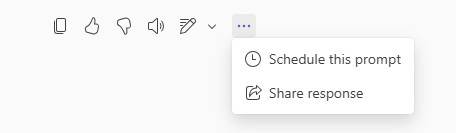
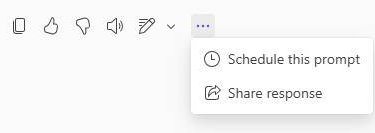
To schedule a prompt, you want to run the prompt and then use the 3 ellipses to choose the option to “Schedule this prompt”. On my scheduled prompts, I am using the M365 Copilot, which is available in Teams Chat. This option will only work when using the Work tab, not the Web tab.
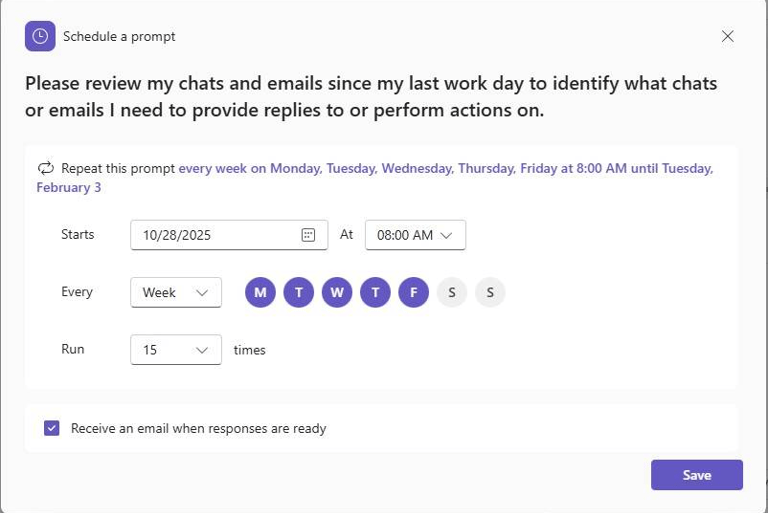
Here is a sample prompt that I have used, which helps to map out what emails and chats I should pay attention to
After choosing the “Schedule this prompt,” you have the following details available, which you can configure, including when the prompt starts, how often it runs, what days of the week, and how many times the prompt should run.Another type of prompt that I run weekly is to get a quick update on what’s going on in AI:
"Please send me a short, bullet list of key updates on AI (including ChatGPT, Copilot, Gemini, Perplexity, or Claude) that have occurred in the last week. It needs to be a maximum of 10 items, numbered and ordered from the highest importance to the lowest importance."
Another example
"Look at my calendar for the week – summarise what calendar items and action items that are due this week in a table. “List action items in a dedicated column. Suggest follow-ups if possible, in a dedicated column. The table should look like this: Type (Mail/Teams/Channel) | Topic | Summarization | Action item | Follow-up."
One‑line Copilot command:
"Summarize my workday from Outlook and Teams, including today’s meetings (time, participants, overlaps, recaps from prior customer meetings), unread priority emails, tasks due or overdue, follow‑ups from recent conversations, and highlight interactions with top collaborators while ignoring personal entries, system notifications, and completed items"